

Amicus provides an add-in that you can install into your local copy of Microsoft Word and Excel. It gives you an "Amicus Cloud" ribbon from which you can conveniently upload a document from Word or Excel to Amicus, or perform various document template tasks in Word: create, edit, upload, download, and generate.
At a computer where Word and/or Excel reside:
● We recommend that you exit Word.
● Log in to Amicus
Cloud, choose Options > Firm Setup and click
Microsoft Office Add-in.
● Click Download Office Add-in and then follow the onscreen installation instructions.
● Once you've
restarted Word, the Amicus Cloud ribbon will
appear in it.

● Once you've
restarted Excel, the Amicus Cloud ribbon will
appear in it.
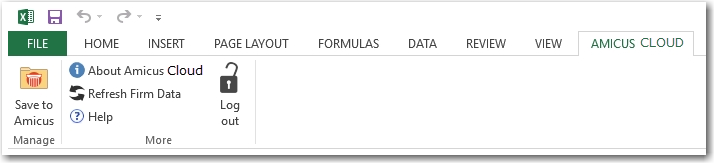
● Upon your initial
use of the Add-in, you'll be prompted for your Amicus login credentials.
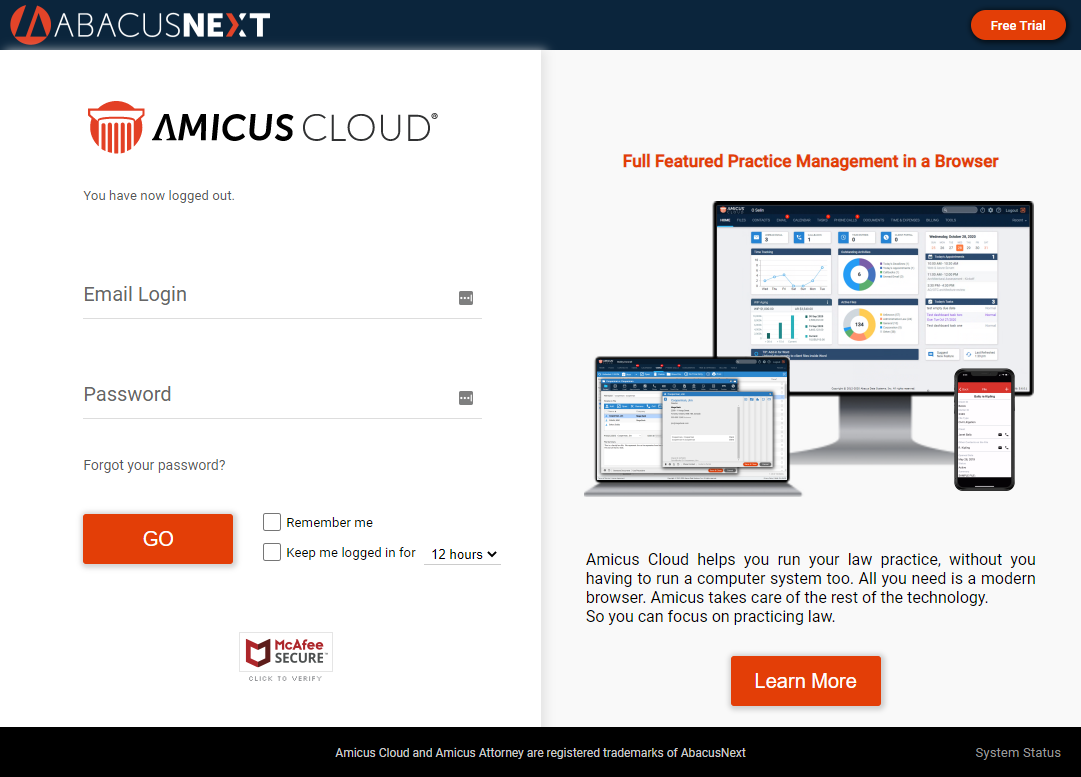
● As usual, you can choose how long your Add-in login will remain active.
● For security,
especially if working at an unsecured computer, you can click Log Out
when done.

● Save to Amicus – Uploads the current document (Word document or Excel workbook) to Amicus, in the selected file's folder. It's added as a new document, or as a replacement or new version to an existing document.
● For more about documents, see Document Management.
● Generate from Template – Generates a new document from the Amicus Word or Amicus Editor template you select. The document opens in Word, ready for you to edit further, print, save locally, or save to Amicus.
● Variable – Shows a dropdown list of available Amicus variables (including file and contact custom fields). Choosing one adds it to the document, which you'll later upload to Amicus as a template.
● Command – Shows a dropdown list of available Amicus commands. Choosing one adds it to the document, which you'll later upload to Amicus as a template.
● Show Syntax – Highlights the Amicus variables and commands in the document, to help you review your template design work.
● Upload Template – Uploads the document to Amicus as an Amicus Word template (if DOCX), or as an Amicus Editor format template (if HTM, HTML, or DOCX). It's either added as a new template, or replaces an existing template of the same name.
● Download Template – Downloads a copy of a selected template (commonly an Amicus Word template). It opens in Word, ready for editing.
● For more about document templates, see Document Assembly. In particular, see:
o Which template format: Amicus Editor or Amicus Word?
o Create, view, or edit a document template in Word
● Refresh
Firm Data –
Requests your Amicus Cloud credentials, and then updates the Amicus data
kept locally by the Add-in: your firm's file, document category, and custom
field lists, etc. Click whenever necessary.

Amicus Cloud (January 2023)
Copyright