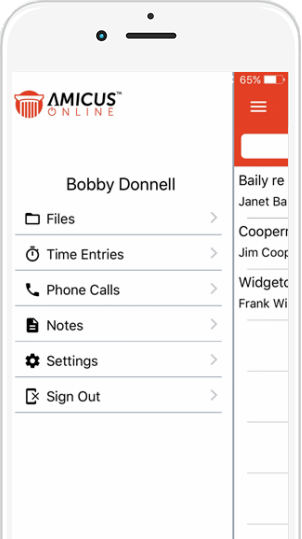
● Click the Files link to view a list of Recent Files that you have worked on.
o This include files that you have created Time Entries for, placed Phone Calls or attached Notes.
o Open any of these files and see basic details about the matter from the palm of your hand.
o You will also be able to see the Primary Contact and any other contacts on the file.

● Beside the Client and Contacts are icons to easily place a phone call or send them an email.
o You can also drill down by clicking on the contact’s name to see all of their phone numbers and email addresses.
● Helpful prompts make sure you record the details of all your calls.
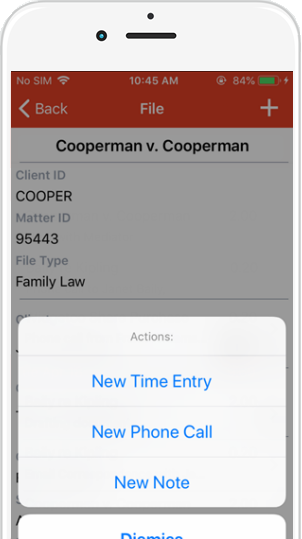
● Click the  icon
at the top and select an option from the Actions
pop-up list.
icon
at the top and select an option from the Actions
pop-up list.
● Click New Note to add notes to a file so that they are accessible to other Firm Members in the future.
● In our example, we selected New Phone Call.
● After the phone call is complete a prompt displays with the amount of time spent.
● To record the details.
● Click Yes and a record appears with the relevant details already filled in.
● Make
whatever edits you like, then click Done
at the top. A further prompt asks if you would like to create
a time entry associated with the phone call?

● Click Yes to display a New Time Entry screen.
o The Duration and Description fields are filled out with information from the prior screen.
o Make edits to the fields or add an Activity or Task Code if you wish.
o Click Done to record the Time Entry.
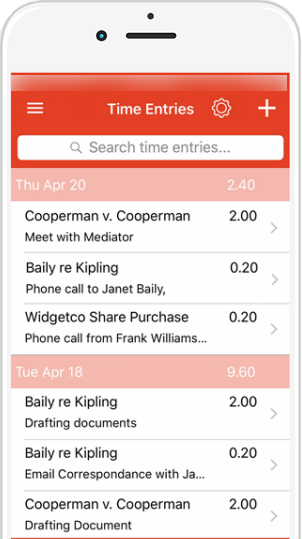
● After you have worked on a file if you go back in the Navigation screen and select Time Entries the new time entry you recorded displays at the top.
● The
list includes any time entries within the search criteria whether
they were created in the App or back in Amicus Cloud.
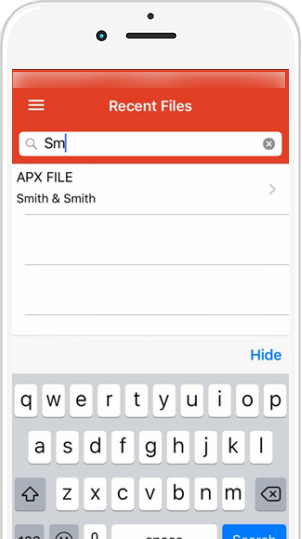
● To search for other files not listed under Recent Files, click in the Search all files... field at the top and enter the first 2 letters of a file. A list of files that meet your search criteria is returned.