Tools, Reports, & Import > Run Reports > Client Listing Report
The Client Listing Report provides a concise summary of Files with WIP (Work in Progress) and/or A/R (Accounts Receivable), Trust and General Retainer balances.
WIP and A/R are broken down by fees and expenses. Summaries appear by File Type and Responsible Lawyer.
To run the report:
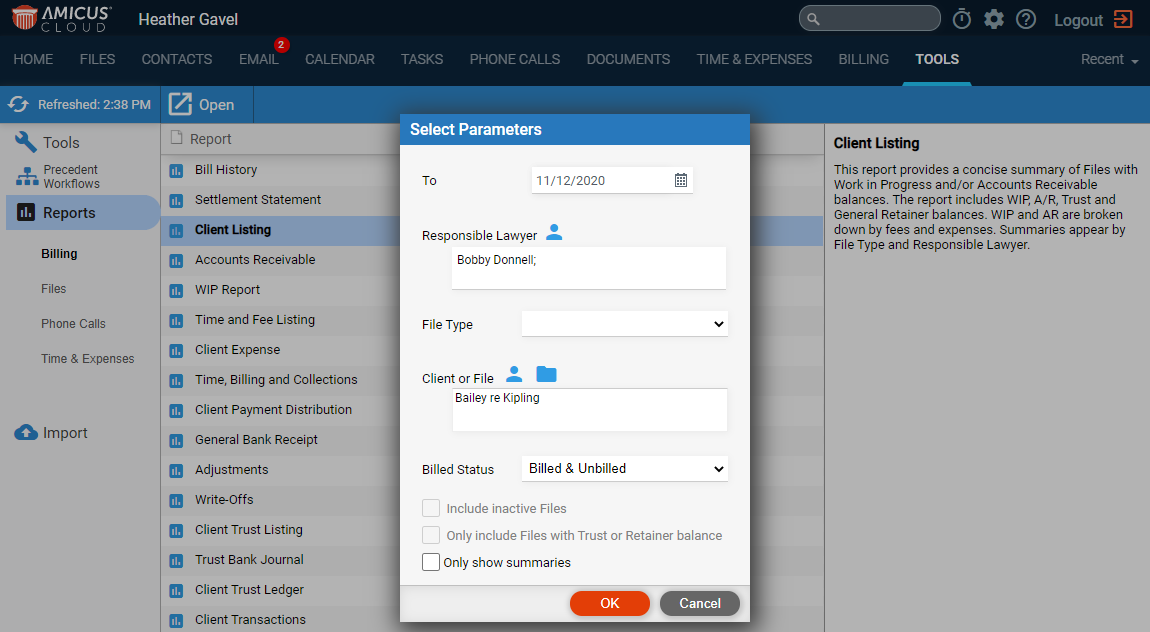
1. Go to Tools in the main menu bar, select Reports
> Files from the left pane and Client Listing
from the main screen to display the Select Parameters
dialog.
2. To filter the report:
● Use the calendar controls in the To fields.
● Select the person icon to select a Responsible Lawyer from the Select Firm Members / Groups window.
● Select a File Type from the drop down list.
● In the Client or File field, select the person icon to select a contact from the Select Contact(s) window or click the file icon to select a file from the Select File(s) window.
● Select a Billed Status from the drop down list, Billed & Unbilled, Unbilled or Billed.
● Select a check box to:
o Include inactive Files
o Only include Files with Trust or Retainer balance
o Only show summaries
3. Click OK.
● A Client
Listing Report displays allowing you to quickly see a summary of
Files with
WIP and/or A/R broken
down by fees and expenses, Trust
and General Retainer balances.
The summaries appear by File Type
and Responsible Firm Lawyer.
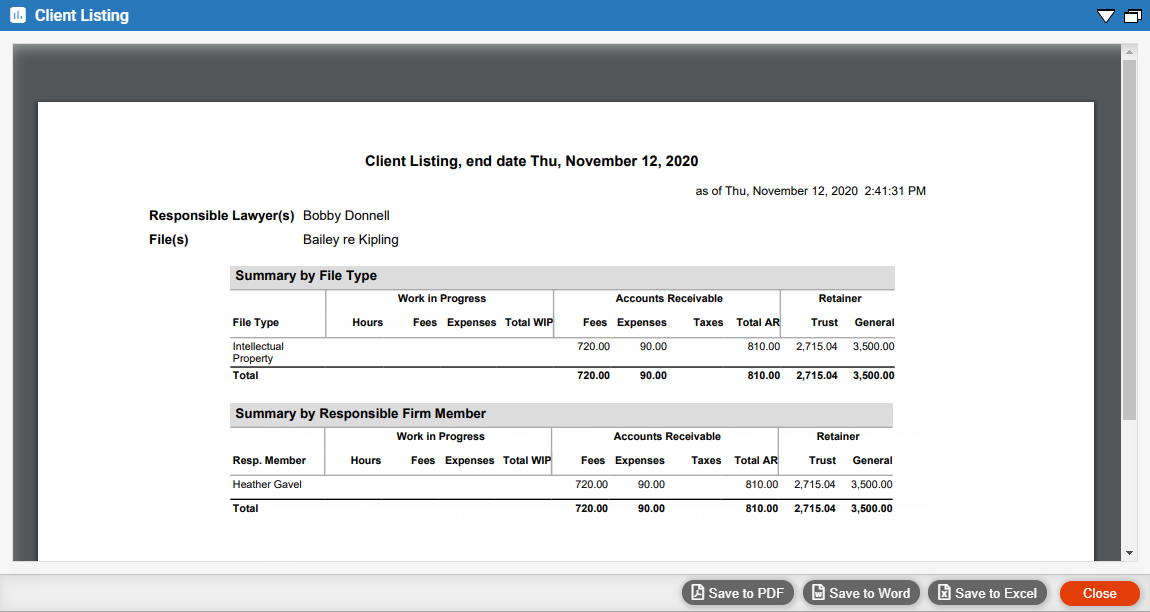
● This new report can be saved to PDF, Word or Excel.
● Expenses in Date Range Report
● Time, Billing and Collections
Amicus Cloud (January 2023)
Copyright