Tools, Reports, & Import > Run Reports > Expenses in Date Range Report
The Expenses in Date Range Report lists client payments for a specified date range.
● The report includes all the relevant details such as the client file, date, firm member, expense description, expense type, quantity and amount.
To run the report:
1. Go to Tools in the main menu bar, select Reports
> Time & Expenses from the left pane and
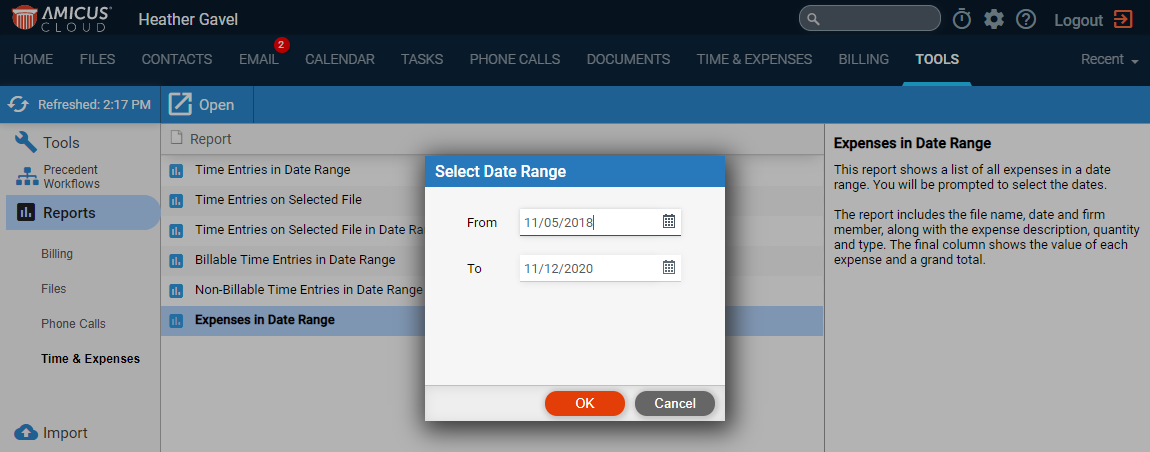
Expenses in Date Range from the main screen to display the Select Date Range dialog.
● Use the calendar controls to enter From and To dates, then click OK.
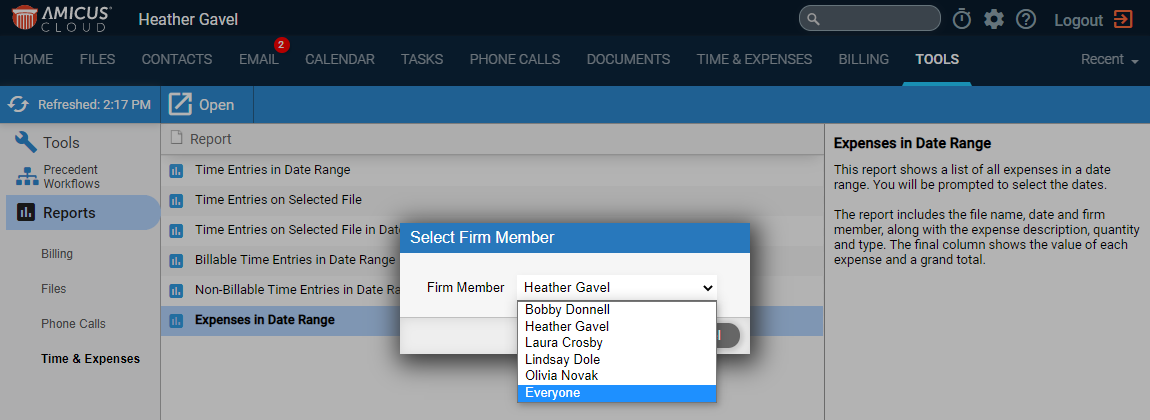
2. A Select Firm Member dialog displays prompting you
to select a Firm Member or Everyone
from the pull-down list.
3. A Select
Expense Type dialog displays.
|
● You are prompted to restrict the report to a given Expense Type by selecting an expense from the pull-down list or to select All expenses. o In our example, we selected All. |
4. Click OK.
● An Expenses in Date Range report displays listing All expenses in the specified date range.
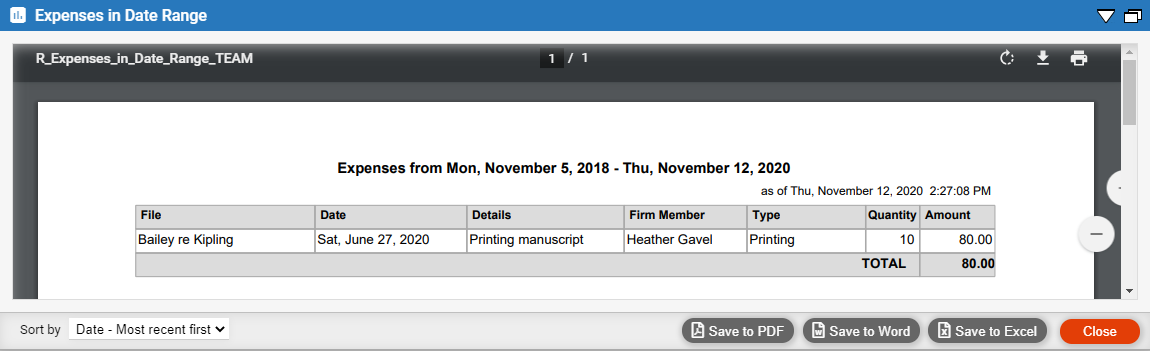
● This new report can be saved to PDF, Word or Excel.
● Time, Billing and Collections
Amicus Cloud (January 2023)
Copyright
